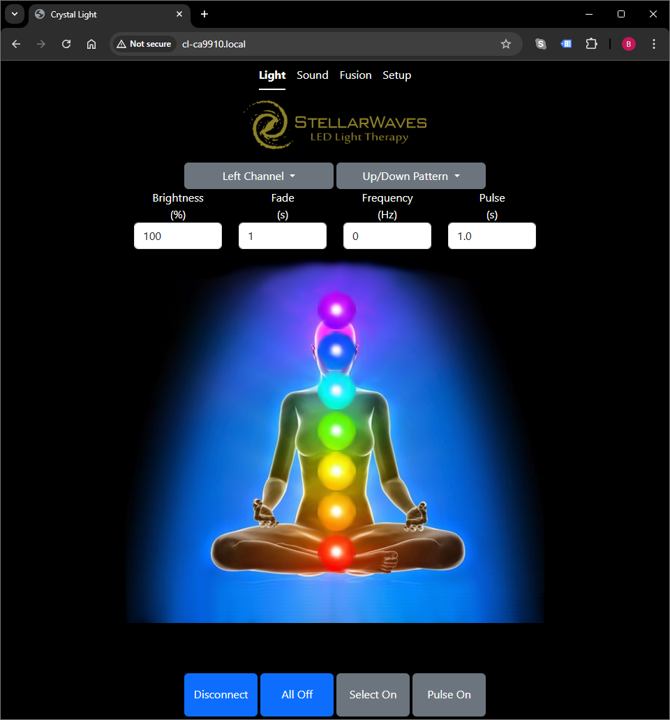
The latest version of Crystal Light Application is a web app. To use this application you must connect your light bar to your local Wi-Fi network. Then you can use a Brain Sync Tablet or your own mobile device to connect to the web app hosted by the light bar. Note that since this is a web app, it will work on both Android and iOS devices.
3 Step Setup Process
For ease of setup QR codes are provided on the back of the light bar. Use these links to complete the setup process.
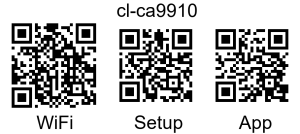
- WiFi QR Code – this will connect your mobile device to the light bar access point
- Setup QR Code – this will open your mobile browser to the light bar setup page. Use this setup page to join the light bar to your local Wi-Fi network.
- App QR Code – this will open your mobile browser to application page. After the Wi-Fi is setup always use this link to open the application. The light bar remembers the Wi-Fi settings even if it is restarted.
The label above the QR codes is the light bar hostname. This uniquely identifies your light bar. If you want to manually join the light bar access point, you can find the hostname SSID (e.g. cl-ca9910) in your list of Wi-Fi networks. You can also navigate to the app by typing hostname.local (e.g. cl-ca9910.local) into you browser.
WiFi Access Point
The purpose of connecting to the light bar access point is to setup the local WiFi connection. When your mobile device is connected to the light bar access point, the lights will blink green color. If you restart or power cycle the light bar, your mobile device should lose connection to this access point. When the light bar starts it will show steady colors.
Setup WiFi
After navigating to the setup page, scan for your local Wi-Fi network, select it from the list, and provide your password. Click Connect to join your local network.
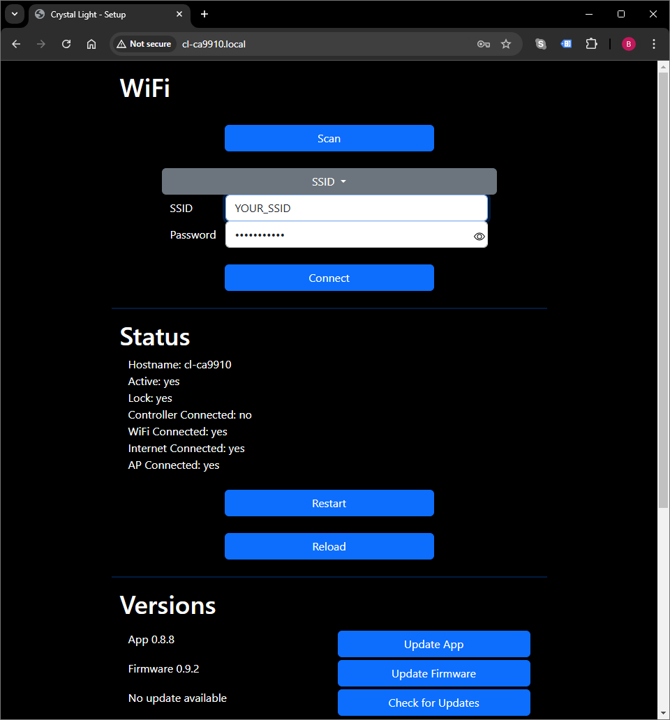
Once the light bar joins, you can click Restart button or power cycle the light bar. When the light bar restarts the access point connection will drop and the lights will stop blinking green. If they blink red then the light bar failed to join your Wi-Fi network. Check your password and try again.
Application
After the Wi-Fi connection is setup, you can navigate to the app page. Now the light bar is controlled by your mobile device. Setup is now complete.